
AI FAQ Generator for Products
Shopware
Generate product FAQs automatically using AI. Improve customer experience, reduce support questions, and enrich product pages with relevant, high-quality answers in seconds.

Connect Shopware 6 with QuickBooks to synchronize orders, customers, products, vendors, sales receipts and refunds for efficient, accurate accounting.
The QuickBooks Integration for Shopware 6 connects your online store with QuickBooks and helps automate essential accounting and financial management processes.
The extension synchronizes relevant Shopware data, including customers, products, vendors, orders, sales receipts, and refund receipts, with QuickBooks. This reduces manual data entry, improves accuracy and helps merchants keep their accounting records consistent across both systems.
Sales receipts can be created automatically in QuickBooks based on Shopware orders. Product and item information can also be transferred for easier inventory and financial management. Customer and vendor data is synchronized to help prevent duplicate records and maintain consistent business information.
Refund receipts are supported as well, allowing returns and reimbursements processed in Shopware to be reflected correctly in QuickBooks.
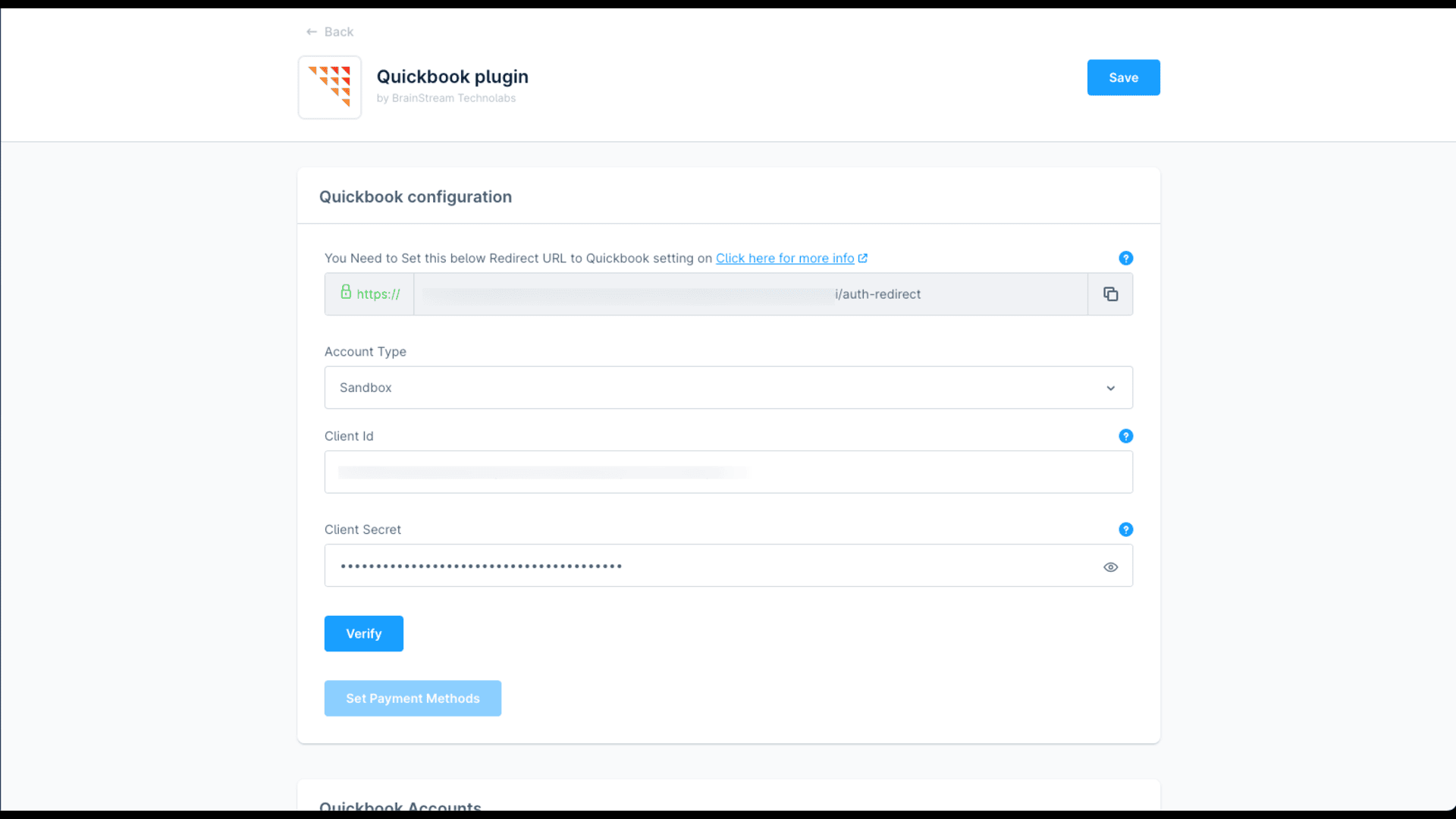
The plugin provides configuration options within the Shopware Administration. After connecting your QuickBooks account and entering the required credentials, synchronization can be managed directly from your Shopware store.
Sales Receipts Sync: Automatically sync sales receipts from Shopware to QuickBooks.
Item Management: Sync products and item details between Shopware and QuickBooks for easy inventory and financial tracking.
Vendor & Customer Sync: Seamlessly synchronize vendor and customer information to maintain consistent data across both systems.
Refund Receipts Integration: Effortlessly manage refund receipts for accurate returns processing and financial reporting.
1.0.0 (6.6.0.0 – 6.7.14.1)
7 November 2024
Install, enable and set configurations.
Quickbook Extension Installation and Configuration Guideline
Shopware
Generate product FAQs automatically using AI. Improve customer experience, reduce support questions, and enrich product pages with relevant, high-quality answers in seconds.

Shopware
Trendify Shop Theme is a modern, responsive Shopware 6 theme with fast performance, SEO optimization, mobile-friendly design, and high-conversion UX for eCommerce stores.

Shopware
Enhance your Shopware store with visual category navigation. Add images to menus to improve UX, guide users faster, and increase engagement and conversions.

Shopware
Display recent sales information on your product detail page to drive customer engagement. Show the number of products sold or, display the number…
Tell us what you need for QuickBooks Integration for Automated Shopware Accounting.

Turn Your
Ideas Into,
Digital Growth



Future-ready AI and software solutions built
around your business goals.
Trusted by Our Clients






Reviews
There are no reviews yet.