Unlocking the Power of vTiger CRM: Installation and Configuration Explained
vTiger Open Source CRM is a customer relationship management (CRM) software solution. It’s an open-source platform, meaning its source code is freely available for anyone to use, modify, and distribute.
vTiger is like a special program that helps businesses keep track of their customer relationships. It’s like a toolbox with different tools to help businesses talk to their customers, remember important information about them, and keep everything organized.
vTiger CRM is popular among small and medium-sized businesses due to its flexibility, affordability, and open-source nature, which allows for customization and integration with other systems.
System Requirements for Installing vTiger Open Source CRM
- Web Server: Apache or Nginx
- PHP Version: 7.2 or higher (with required extensions)
- Database: MySQL 5.7 or MariaDB 10.2
- Operating System: Linux (recommended), Windows, or macOS
- RAM: Minimum 2 GB (4 GB recommended)
- Disk Space: Minimum 5 GB (10 GB recommended)
- Web Browser: Compatible with the latest versions of Chrome, Firefox, Safari, or Edge
- Additional Requirements: PHP configuration settings such as memory_limit, upload_max_filesize, post_max_size, etc., should meet vTiger CRM’s recommendations.
Installing vTiger Open Source CRM
1. Step
- Download the latest version of Vtiger CRM from https://sourceforge.net/projects/vtigercrm/.
2.
- Extract the zip file to your server’s root folder.
3. Step
- Give 0755 permissions to the folders below.
cache/
config.inc.php
layouts/
modules/
logs/
parent_tabdata.php
storage/
tabdata.php
test/
user_privileges/
languages/
4. Step
- Go to your domain, and the CRM installation will be accessible from there.
5. Step
- An installation wizard will be opened. Click on the install button.
6. Step
- Read the terms and conditions and click on the “I Agree” to proceed.
7. Step
- Click “Next” if all the requirements are fulfilled.
8. Step
- Provide the system configurations. Provide details like hostname, username, password, currency, etc.
9. Step
- Double-check the installation settings and click “Next”.
10. Step
- Select the industry for which you are implementing the vTiger CRM system.
11. Step
- CRM installation wizard will start showing the installation progress on the next screen. Make sure to select the modules that you are going to use.
12. Step
- The system dashboard will be shown on installation completion.


Manish Khilwani
Author
Co-Founder at BrainStream Technolabs, he focuses on building people-first, scalable eCommerce and digital products that help brands grow with clarity and innovation.
Table of contents
BLOGS
Learn & Grow with Us
Get the latest updates on trends and strategies that shape the business world. Our insights are here to keep you informed and inspired.

How Much Does AI Integration into a Symfony Application Cost in 2026?
Adding artificial intelligence to your Symfony application can improve customer…
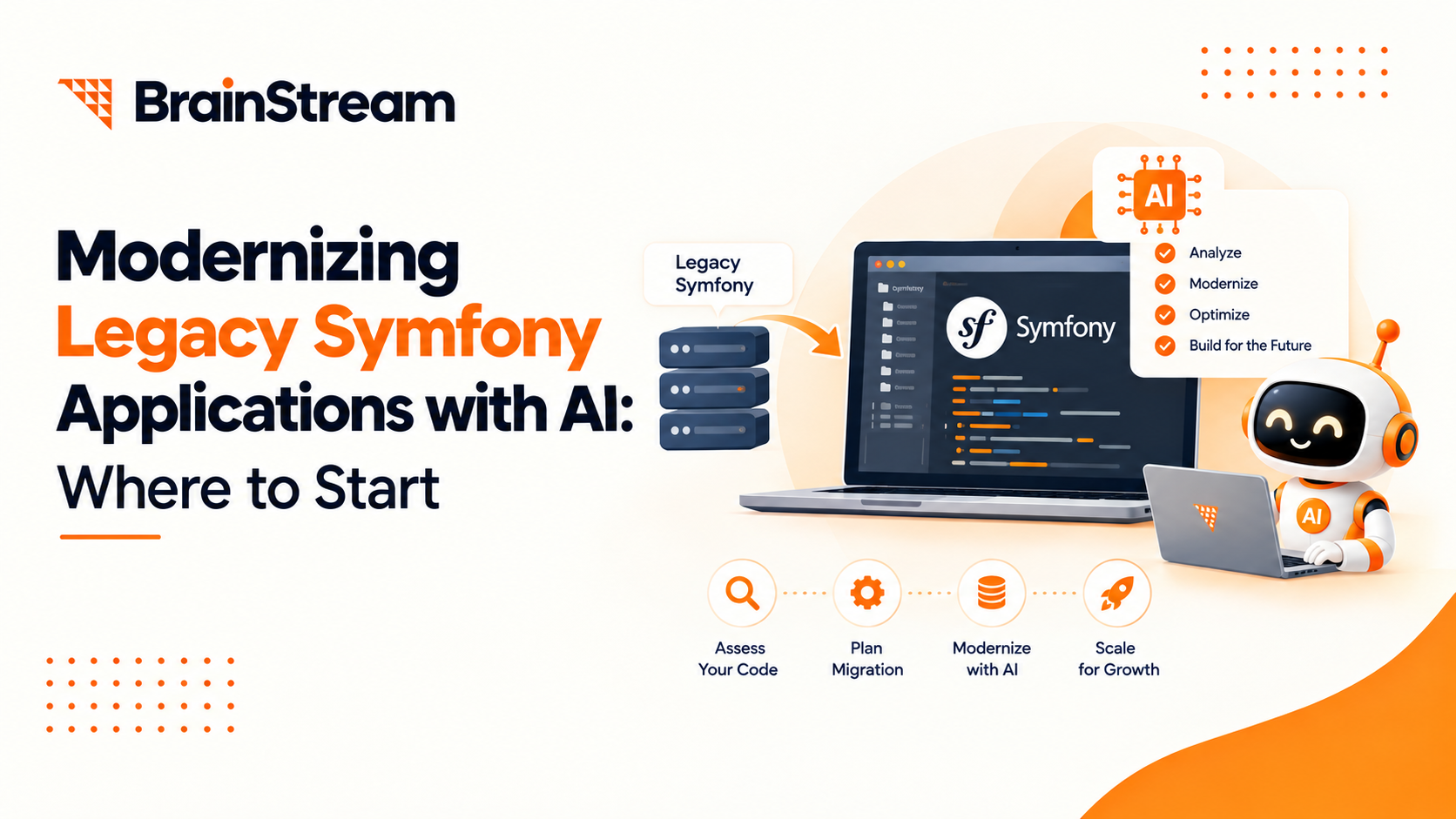
Modernizing Legacy Symfony Applications with AI: Where to Start
Your Symfony application still runs your business. However, adding features…

Agentic Commerce in 2026: How AI Agents Are Changing Online Shopping
Online shopping is entering a new phase. For years, shoppers…
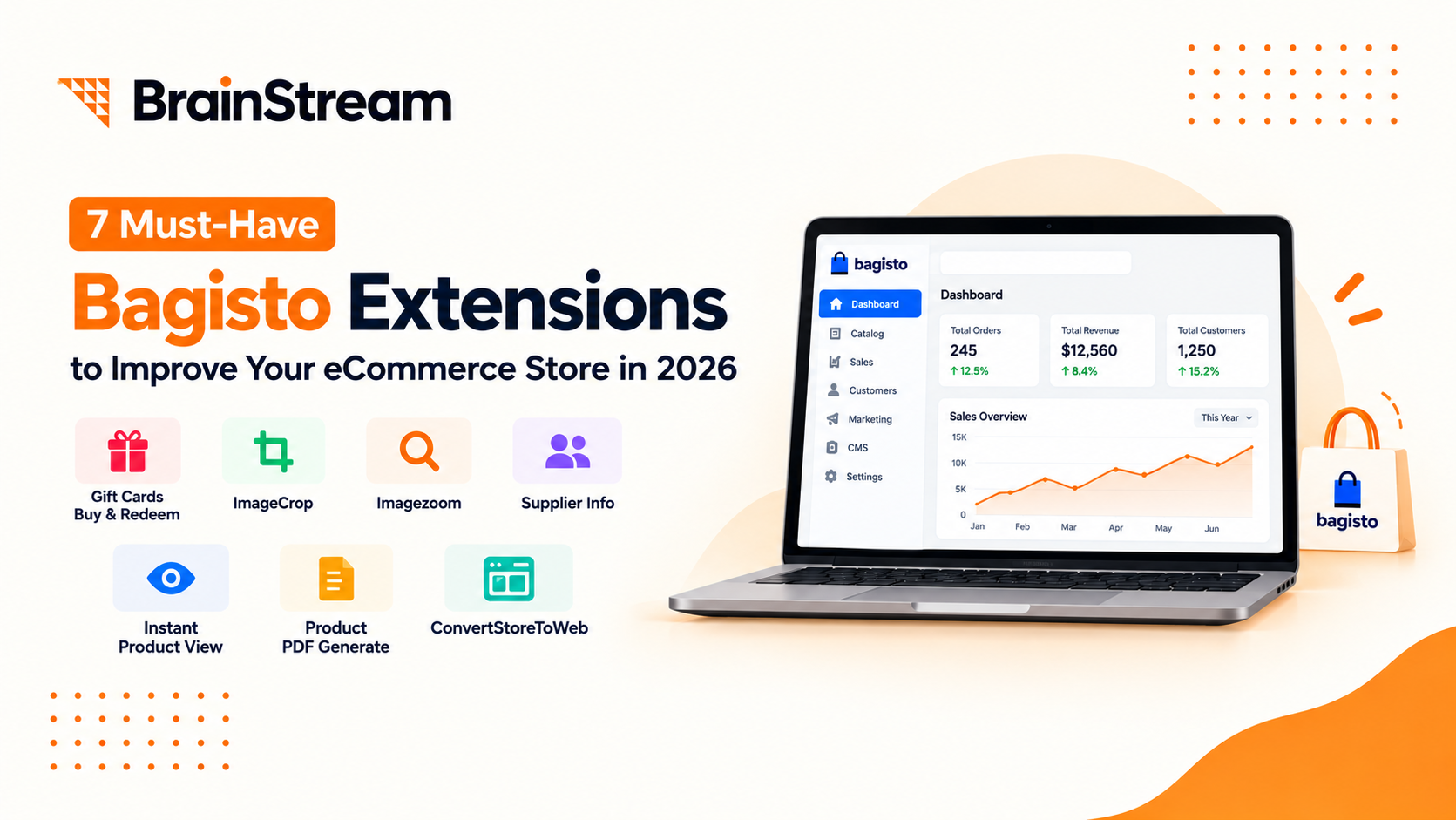
Top 7 Must-Have Bagisto Extensions to Improve Your eCommerce Store in 2026
Running an online store takes more than adding products and…