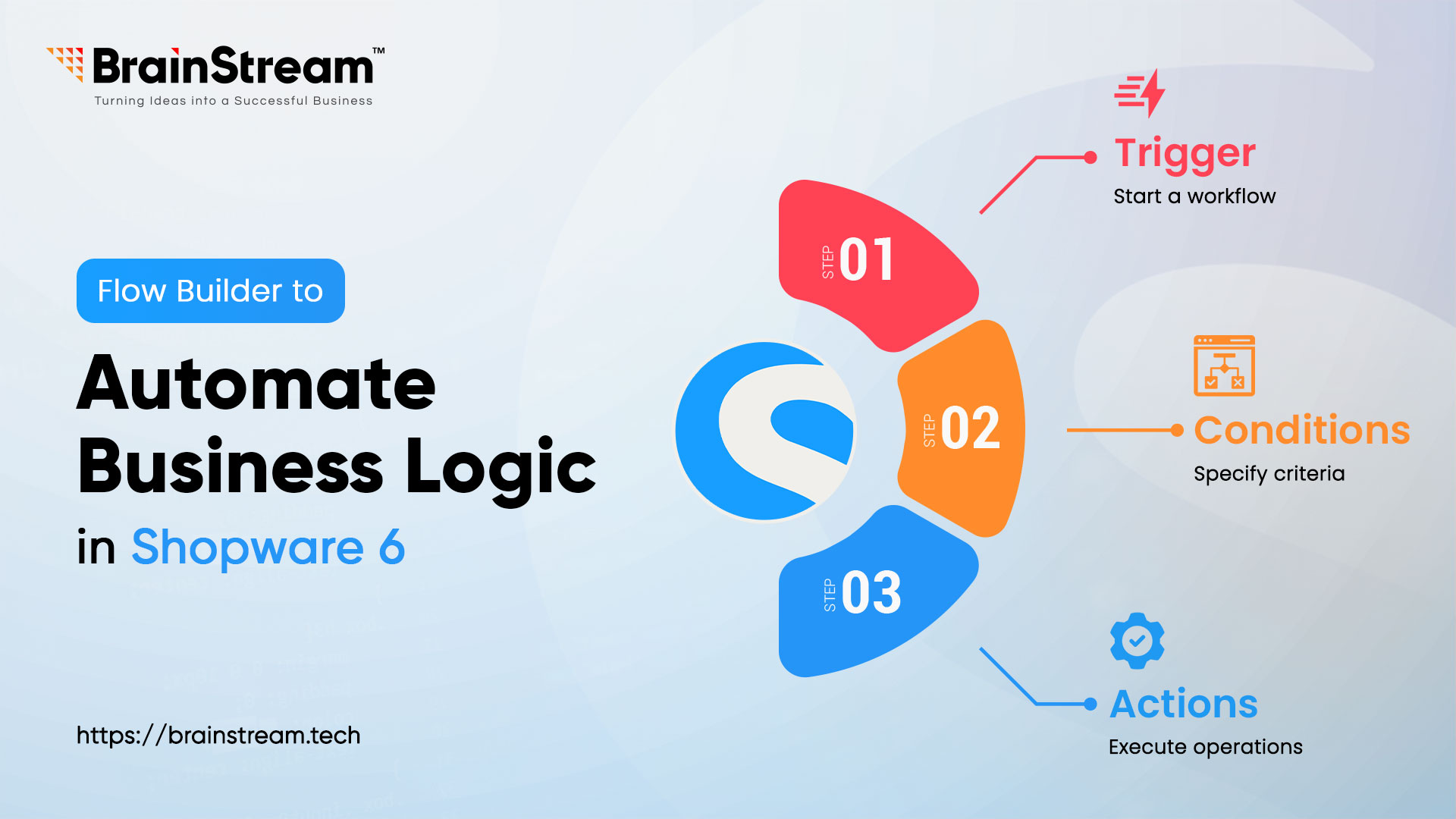
Flow Builder to Automate Business Logic in Shopware 6
In today’s rapidly evolving e-commerce landscape, automation plays a crucial role in optimising workflows, enhancing efficiency, and improving the overall customer experience.
Shopware 6 Flow Builder stands out as a robust no-code solution that enables users to automate intricate business processes without coding. With Flow Builder, store owners can design tailored workflows that trigger based on specific events, offering adaptability and scalability across B2C, B2B, and D2C models.
This blog delves into the technical details of Flow Builder, its core components, and provides a practical example to illustrate its capabilities.
What is Flow Builder?
Flow Builder is an automation feature built into Shopware 6 that allows merchants to create and run customised business processes without coding. It works in conjunction with the Rule Builder to provide a dynamic system where users can combine triggers, conditions, and actions. This setup enables automation of tasks such as sending emails or modifying order statuses, offering a highly adaptable approach to process management.
Example use cases:
- Send a thank-you email when an order is placed
- Cancel orders automatically if payment fails
- Tag VIP customers based on their total purchase value
Key Components
1. Triggers (Events)
These are the starting points of any flow. They represent a specific Shopware event that initiates a workflow.
Examples of Core Triggers:
- contact_form.send
- newsletter.register
- checkout.customer.register
- checkout.order.placed
- state_enter.order_transaction.state.paid
- state_enter.order.state.in_progress
2. Conditions
After a trigger fires, conditions act as logical gates that determine whether subsequent actions should be executed. They allow you to define precise criteria for a flow to proceed.
Types of Conditions:
- Order-related: Order total, payment method, shipping method, customer group, specific product in order, order tags.
- Customer-related: Customer group, registration date, and last login date.
- Product-related: Product stock, price, specific category, and custom fields.
- General-related: Time of day, day of the week.
- Logic: Conditions can be combined using AND/OR operators, allowing for highly complex decision trees. You can group conditions to build sophisticated rules.
3. Actions
These are the operations performed when a flow’s conditions are met. Flow Builder offers a rich set of predefined actions, with extensive possibilities for custom extensions.
Examples of Core Actions:
- Email Sending: Send specific email templates to customers, administrators, or custom recipients.
- State Changes: Change the state of an order (e.g., checkout.order.state_machine.open -> in_progress), a product, or a customer.
- Tag Management: Add or remove tags from customers or orders. This is incredibly powerful for segmentation and subsequent automation.
- Assign Custom Field: This action allows you to dynamically set or update the value of a custom field (also known as a “custom property” in some contexts) on entities like orders, customers, or products.
- Generate Document: This action automatically creates various document types, such as invoices, delivery notes, and credit notes, based on predefined templates in Shopware.
- Stop Flow: This action terminates the current flow at that specific point.
- Assign Affiliate and Campaign Code: This action allows you to assign specific affiliate and/or campaign codes to an order.
Practical Example: Automating VIP Customer
Goal: Automatically upgrade customers to a VIP tier if they have placed 5 or more orders, notify them via email, and tag their orders as high-priority for faster processing.
Trigger: `Checkout.Order.Placed`
Conditions: Order total is > 1000
Actions: Assign VIP customer group, add “Priority” tag to the order.
Step-by-Step Guide
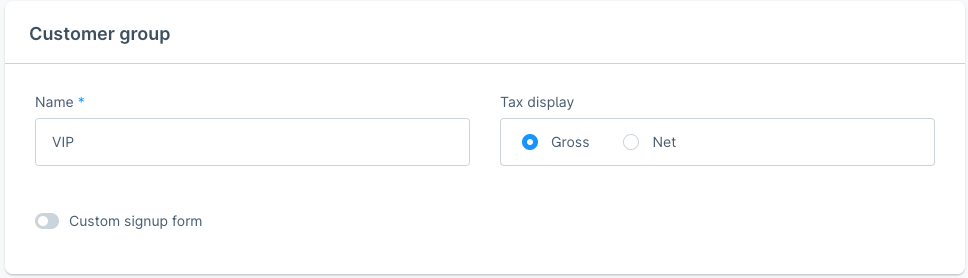
- Create a VIP Customer Group
- Navigate to Settings > Customer Groups in the Shopware admin panel.
- Click Add New Customer Group, name it “VIP”, and save.
- Create a Priority Tag
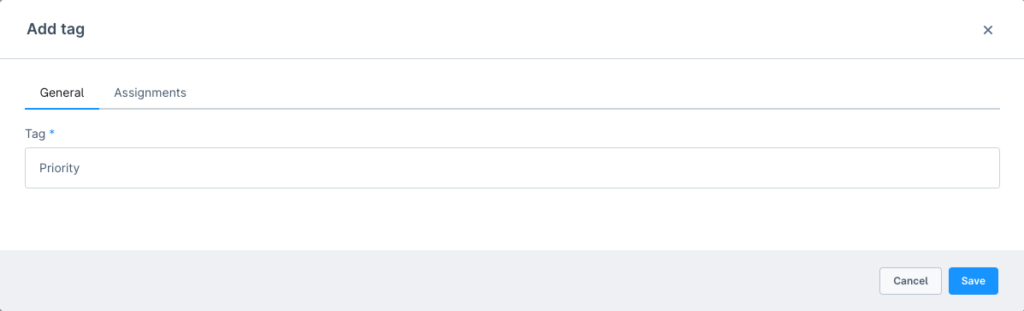
- Go to Settings > Tags and click Add Tag.
- Name the tag “Priority” and save. This will be used to mark orders for faster processing.
- Create a Rule in Rule Builder
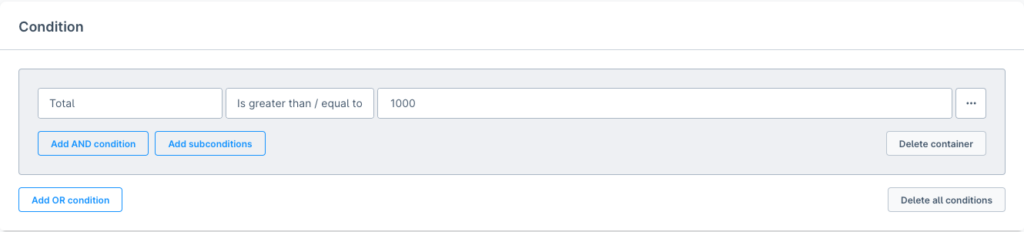
- Navigate to Settings > Rule Builder and click Add Rule.
- Name the rule “Customer Eligible for VIP Tier”.
- Set the condition: `Shopping cart > Total > Greater than or equal to > 1000`.
- Set priority to 100 and save. (The priority indicates whether a rule is applied before another rule, if relevant. The higher the priority, the sooner it is executed.)
- Create the Flow in Flow Builder
- Go to Settings > Flow Builder and click Add Flow.
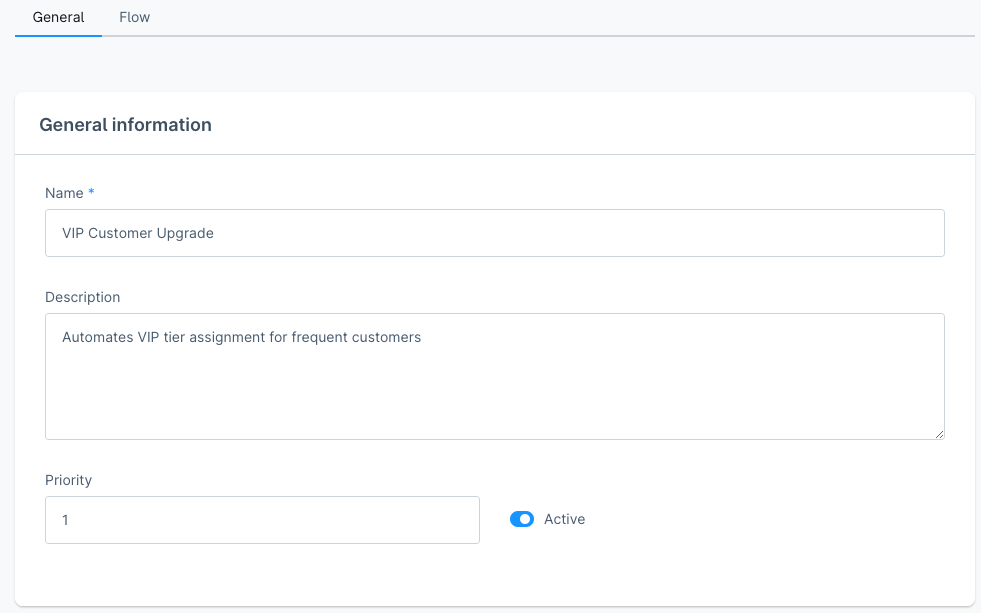
- General Tab
- Name: “VIP Customer Upgrade”
- Description: “Automates VIP tier assignment for frequent customers”
- Priority: 1
- Active: Enable the switch
- Flow Tab
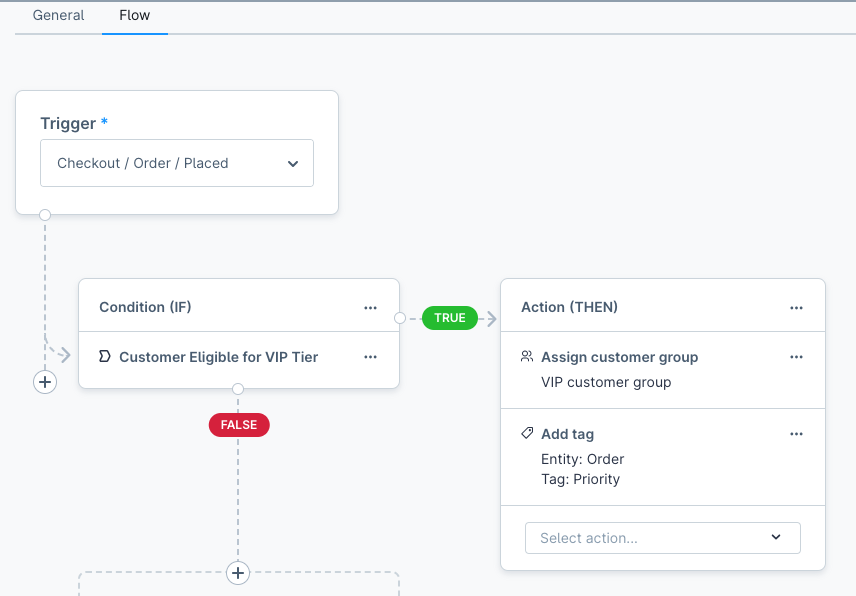
- Trigger: Select `Checkout.Order.Placed`.
- Condition: Add the rule “Customer Eligible for VIP Tier”.
- Actions:
– Assign Customer Group: Select “VIP” from the dropdown.
– Add Tag: Select the “Priority” tag and apply it to the order. - Save the flow.
Creating Custom Flow Actions and Trigger (Developer)
Want to do something Flow Builder doesn’t support out of the box? You can register custom flow actions with a Shopware plugin.
class MyCustomFlowAction extends FlowAction
{
    public static function getName(): string
    {
        return 'my.custom.action';
    }
    public function requirements(): array
    {
        return [TagAware::class];
    }
    public function handleFlow(StorableFlow $flow): void
    {
       // Custom logic here
    }
}
If you want to add a custom trigger then you can create a custom flow trigger.
class CustomFlowEvent extends Event implements FlowEventAware
{
    public const EVENT_NAME = 'your_plugin.custom.trigger';
    private string $customValue;
    public function __construct(string $customValue)
    {
        $this->customValue = $customValue;
    }
    public function getCustomValue(): string
    {
        return $this->customValue;
    }
    public function getName(): string
    {
        return self::EVENT_NAME;
    }
    public static function getAvailableData(): array
    {
        return [
            'customValue' => [
                'type' => 'string',
                'description' => 'A custom string value passed to the flow.'
            ]
        ];
    }
}
Developers can explore the Shopware developer guide on custom Flow Actions and custom Flow Triggers for implementation details.
Benefits of Embracing Flow Builder:
- Time & Resource Optimisation: Drastically reduce manual overhead, allowing your team to relocate focus to strategic initiatives.
- Error Minimisation: Automated processes inherently reduce the scope for human error, leading to higher data accuracy and operational reliability.
- Enhanced Customer Journey: Deliver timely, personalised communication and seamless service, fostering deeper customer loyalty and satisfaction.
- Increased Operational Efficiency: Accelerate your entire operational workflow, from initial order processing to post-purchase engagement.
- Revenue Growth: Automated marketing and targeted follow-up flows translate directly into improved conversion rates and increased repeat business.
- Unrivalled Scalability: Seamlessly accommodate spikes in order volume and business expansion without linear increases in manual labour.
- Empowerment for All: Its intuitive interface empowers both technical and non-technical users to design and deploy sophisticated automations, decentralising process control.
- Developer Extensibility: For developers, Flow Builder is not a black box. Its open architecture allows for the creation of custom triggers, conditions, and actions, providing virtually limitless integration and automation possibilities.
Final Thoughts
Shopware’s Flow Builder is more than just an automation tool; it’s a strategic asset that transforms how you manage your e-commerce business. Embrace its power and unlock a new era of efficiency, customer satisfaction, and growth. The future of intelligent, automated e-commerce is here, and it’s within your reach!

Archana Patel
Author
I’m Archana, an E-commerce Shopware Developer at Brainstream Technolabs. I specialize in creating efficient, user-friendly online stores and integrating scalable e-commerce solutions. I’m passionate about improving digital shopping experiences and enjoy sharing insights on e-commerce trends, technologies, and best practices.
Table of contents
BLOGS
Learn & Grow with Us
Get the latest updates on trends and strategies that shape the business world. Our insights are here to keep you informed and inspired.
How Much Does AI Integration into a Symfony Application Cost in 2026?
Adding artificial intelligence to your Symfony application can improve customer…
Modernizing Legacy Symfony Applications with AI: Where to Start
Your Symfony application still runs your business. However, adding features…

Agentic Commerce in 2026: How AI Agents Are Changing Online Shopping
Online shopping is entering a new phase. For years, shoppers…
Top 7 Must-Have Bagisto Extensions to Improve Your eCommerce Store in 2026
Running an online store takes more than adding products and…